How to Bulk Delete Cards in Ludex
Written By Ross Henke
Last updated 5 days ago
Collection Web Management is currently in Beta. Features and availability may change as we continue to improve the experience.
This article explains how to delete multiple cards from your collection at once using Collection Web Management at collections.ludex.com. Bulk delete is not yet available in the Ludex app.
How to Select and Delete Cards
Go to collections.ludex.com and sign in to your account
On the All Cards page, make sure you are in List View
Click the checkbox at the top of the card list to select every card in your collection
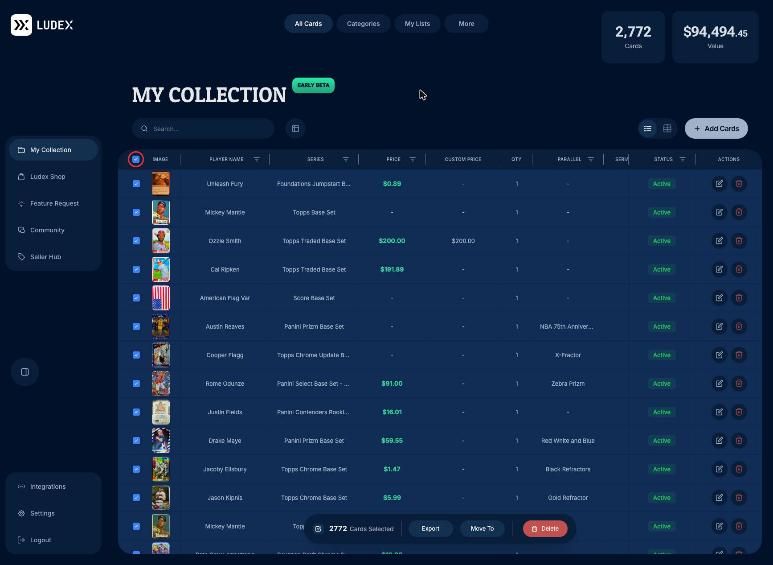
To keep a card, click the checkbox next to it to deselect it
Check the toolbar at the bottom of the screen, which shows how many cards are selected
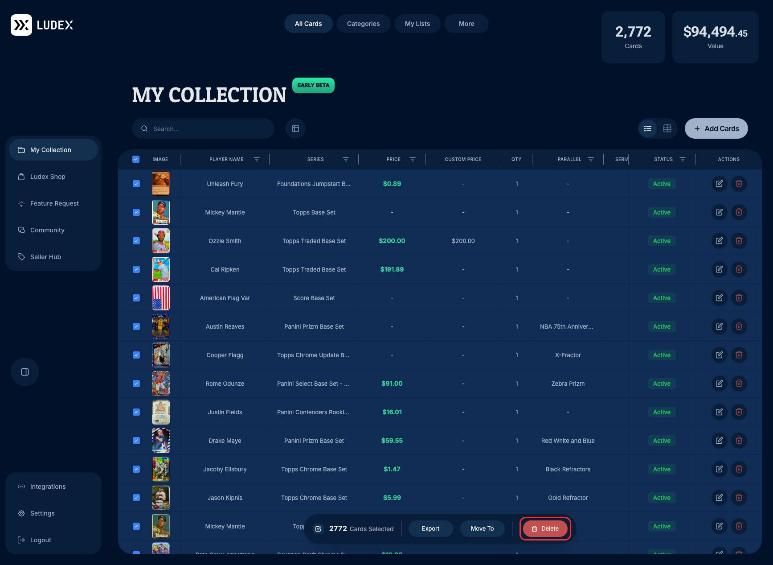
Click Delete in the bottom toolbar
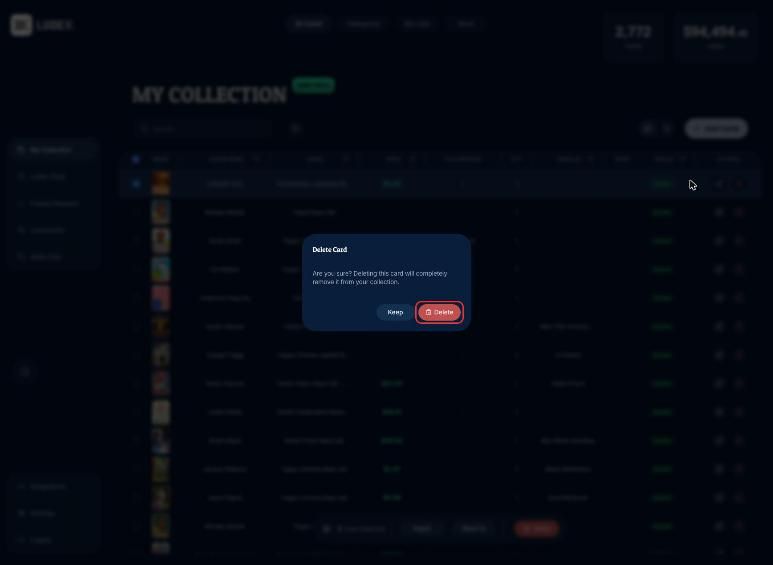
Click Delete again on the confirmation dialog to permanently remove the selected cards
How to Delete Cards by Search
To delete cards for a specific player, team, or keyword, use the search bar to filter your collection before selecting.
Click the Search bar at the top of the All Cards page
Type a player name, team, or keyword to filter your collection
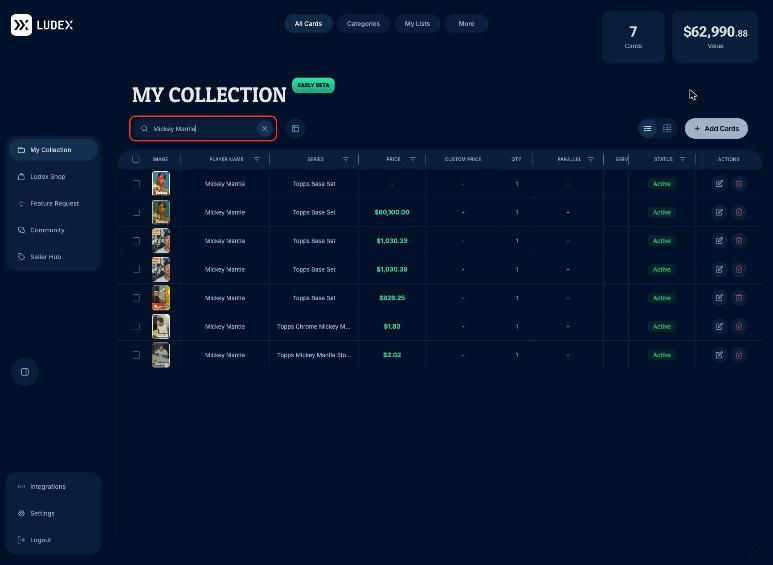
Click the checkbox at the top of the list to select all filtered results
Deselect any cards you want to keep
Click Delete in the bottom toolbar
Click Delete again on the confirmation dialog to permanently remove the selected cards
Important Notes
Deleting cards is permanent and cannot be undone. Review your selection carefully before confirming.
Deleted cards must be scanned again in the Ludex app to be added back to your collection.
When you use search, the top checkbox selects only the filtered results, not your entire collection.
To keep a record of your cards before deleting, use Export in the same toolbar. See How to Export Your Card Collection.
Related Articles
Need Help?
If you have any questions or run into any issues, please contact our support team at support@ludex.com and we will be happy to assist.
Was this helpful?
Still need help? Ask the team