What To Do If Your Collection Is Missing After You Log In
Written By Ross Henke
Last updated 5 days ago
If you log in and your cards are gone, your collection is almost always still safe. In most cases, you are signed in to a different Ludex account than the one you originally created. This article explains why that happens and how to get back to your original account.
Why This Happens
Ludex offers three ways to create an account: Continue with Apple, Continue with Google, and Sign Up with Email. Each one creates its own separate account. If you sign in with a different method than the one you used originally, or tap SIGN UP instead of LOGIN, Ludex creates a new, empty account. Your original account and its cards are still there.
The type of phone you use does not decide how you signed up. iPhone users can sign up with Continue with Google, and Android users can sign up with email.
How to Get Back to Your Original Account
If you are signed in to the wrong account, tap the Profile icon in the bottom right corner of the app, then tap LOGOUT
On the Welcome screen, tap LOGIN, not SIGN UP
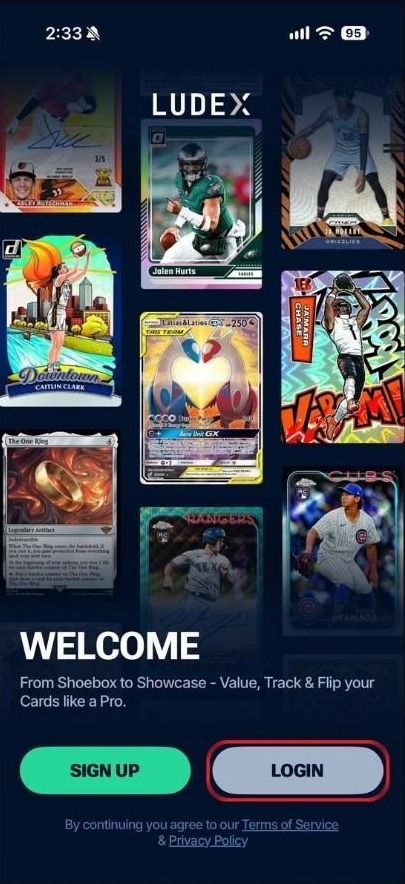
Sign in with the same method you used when you first created your account: Continue with Apple, Continue with Google, or your email address and password
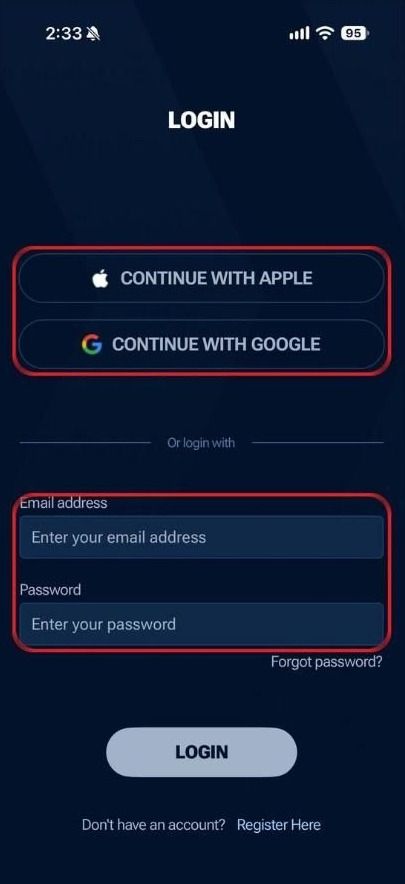
If your cards still don’t appear, log out and try one of the other sign-in methods
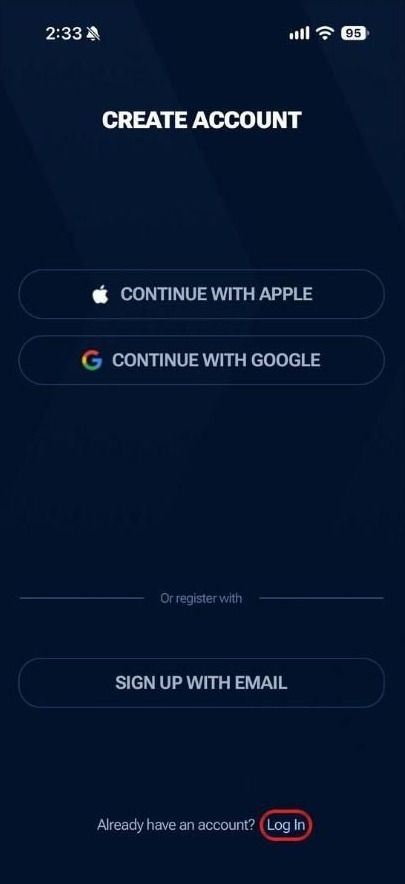
If you land on the CREATE ACCOUNT screen by mistake, tap Log In at the bottom of the screen to switch to the login screen.
If You Used Hide My Email with Apple
If you signed up with Continue with Apple and chose Hide My Email, your Ludex account uses an Apple private relay address ending in privaterelay.appleid.com, not your personal email address. Sign in with Continue with Apple to reach that account.
Forgot Your Password?
Passwords only apply to accounts created with Sign Up with Email. If you created your account that way, see How to Reset Your Ludex Password. Accounts created with Apple or Google do not have a Ludex password. Sign in with the same Apple or Google button you used originally.
Important Notes
Our support team cannot merge two Ludex accounts. Sign in to your original account to see your collection.
Our support team cannot add a password to an account that was created with Apple or Google.
If you contact support, include your Ludex Account ID, found in the app under Profile > Account Settings.
Related Articles
Need Help?
If you have any questions or run into any issues, please contact our support team at support@ludex.com and we will be happy to assist.
Was this helpful?
Still need help? Ask the team