Overview of Ludex Collection Web Management
Learn what Collection Web Management is, how to access it, and what you can do with your Ludex collection on the web.
Written By Ross Henke
Last updated 5 days ago
Collection Web Management is currently in Beta. Features and availability may change as we continue to improve the experience.
This article explains what Ludex Collection Web Management is, how to access it, and what you can do with your collection on the web today.
What Is Collection Web Management?
Collection Web Management is the desktop companion to the Ludex app, available at collections.ludex.com. It gives you a larger-screen view of your Ludex collection, along with tools for adding, organizing, and selling your cards from a web browser.
Your collection syncs automatically between the Ludex app and Collection Web Management. Cards you add in one place appear in the other.
How to Access Collection Web Management
Go to collections.ludex.com.
Sign in with your Ludex account.
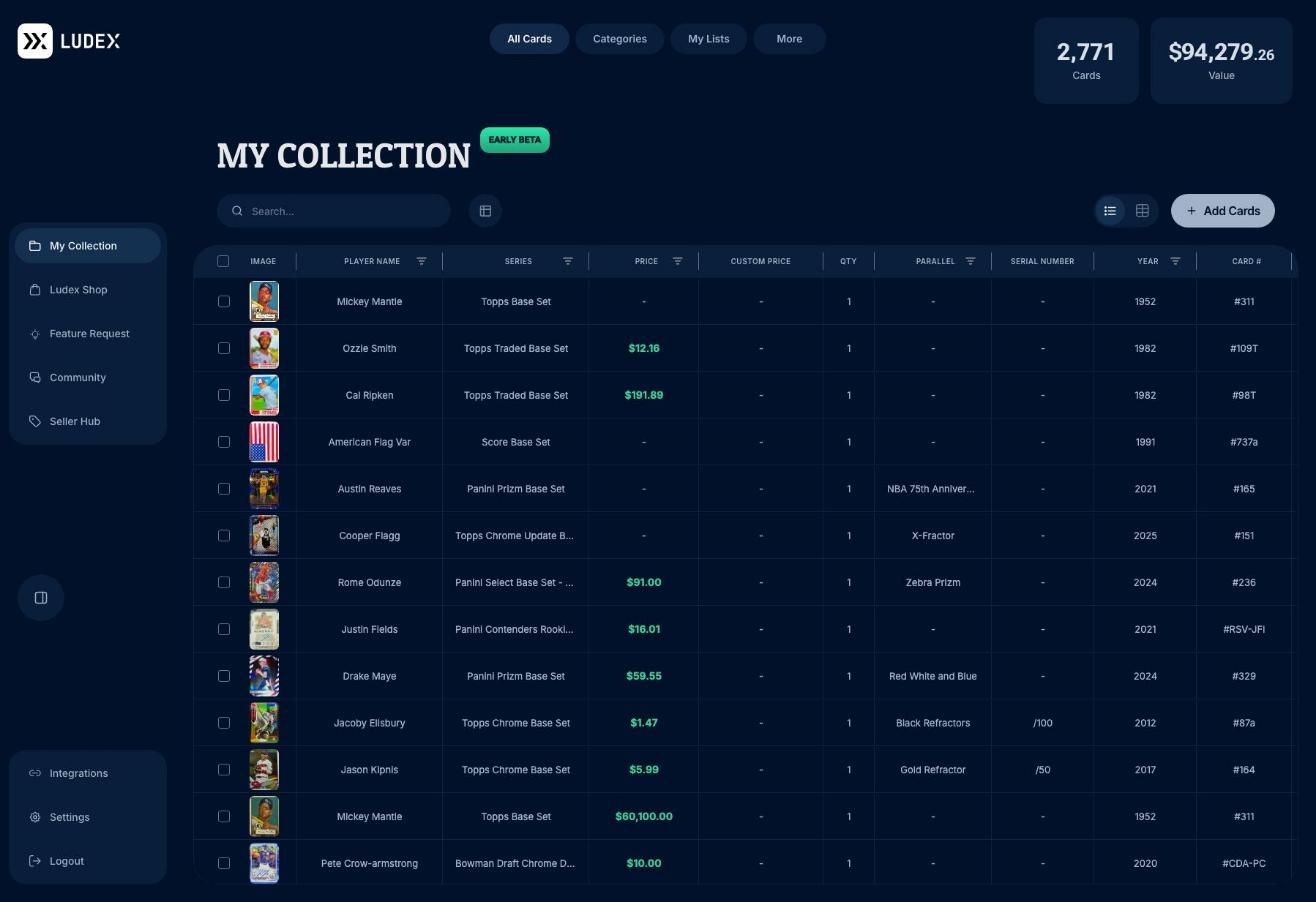
Your collection loads on the My Collection page.
Collection Web Management is available to Standard and Pro members. If you’re on the Free plan or Lite, upgrade to Standard or Pro to get access.
Finding Your Way Around
The tabs at the top of the page let you view your collection in different ways:
All Cards shows every card in your collection in List View or Grid View.
Categories groups your cards by type, such as Baseball, Basketball, or Pokémon, with a value for each category.
My Lists shows the lists you’ve created to organize your cards.
The sidebar on the left gives you quick access to the rest of Collection Web Management:
My Collection returns you to your main collection.
Ludex Shop opens shop.ludex.com in a new tab.
Feature Request opens the Ludex feedback board, where you can suggest and vote on new features.
Community opens the Ludex Discord community in a new tab.
Seller Hub is where you manage cards you’re selling, including listings and listing templates.
Integrations lets you connect selling platforms such as eBay and Walmart.
Settings shows your Account ID and lets you export your collection.
Logout signs you out.
What You Can Do on the Web
Add cards by uploading card photos, or by entering PSA or CGC certification numbers.
Search, filter, and sort your collection, and choose which columns appear in List View.
View card details, including the Ludex Estimate, recent sales, and card information.
Edit card details, such as condition, grade, purchase price, and purchase date.
Add private notes to individual cards.
Update the quantity of a card in your collection.
Create lists and view them as a list, grid, stack, or binder-style book.
Select multiple cards to export, move, or delete them at once.
Delete cards from your collection.
Sell cards on eBay and Walmart once you’ve connected your accounts.
Export your collection as a CSV file from Settings.
Coming Soon
The following features are not yet available on the web:
Editing a card’s Parallel
Sharing lists
Shopify and Whatnot integrations
Important Notes
Deleting a card removes it from your collection. This can’t be undone.
Your collection syncs automatically between the Ludex app and Collection Web Management. No manual sync is needed.
Related Articles
Need Help?
If you have any questions or run into any issues, please contact our support team at support@ludex.com and we will be happy to assist.
Was this helpful?
Still need help? Ask the team