How To Edit a Card's Purchase Details (CWM)
Written By Ross Henke
Last updated 5 months ago
Collection Web Management is currently in Beta. Features and availability may change as we continue to improve the experience.
Within Collection Web Management, you can log and edit the purchase price and purchase date for any card in your collection. This is useful for tracking what you paid and understanding the return on your investment over time.
How to Edit Purchase Price
Visit collections.ludex.com and log in to your Ludex account
Search for or locate the card you wish to edit from your collection
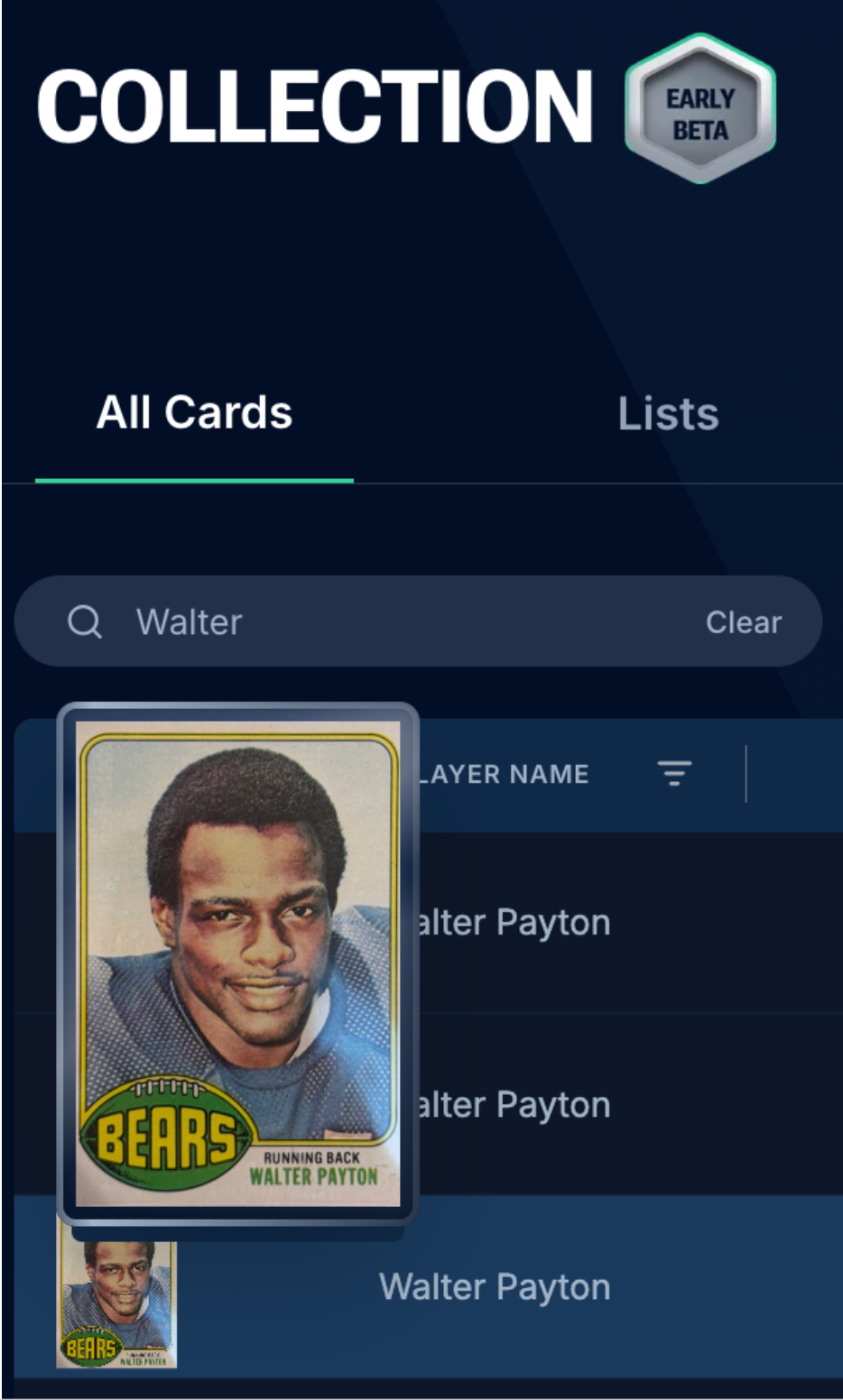
Click into the card to open its detail page
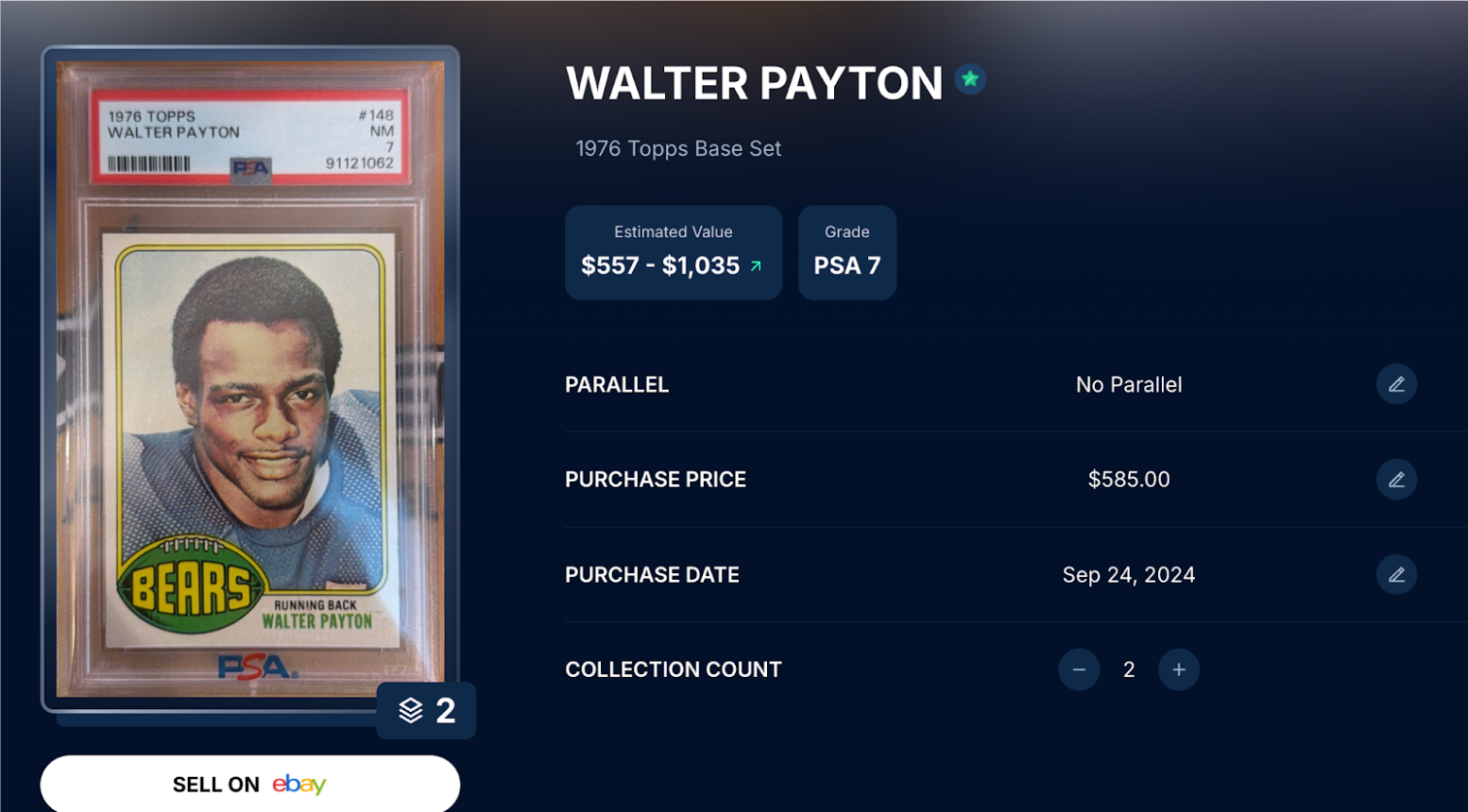
Click the pencil icon next to Purchase Price
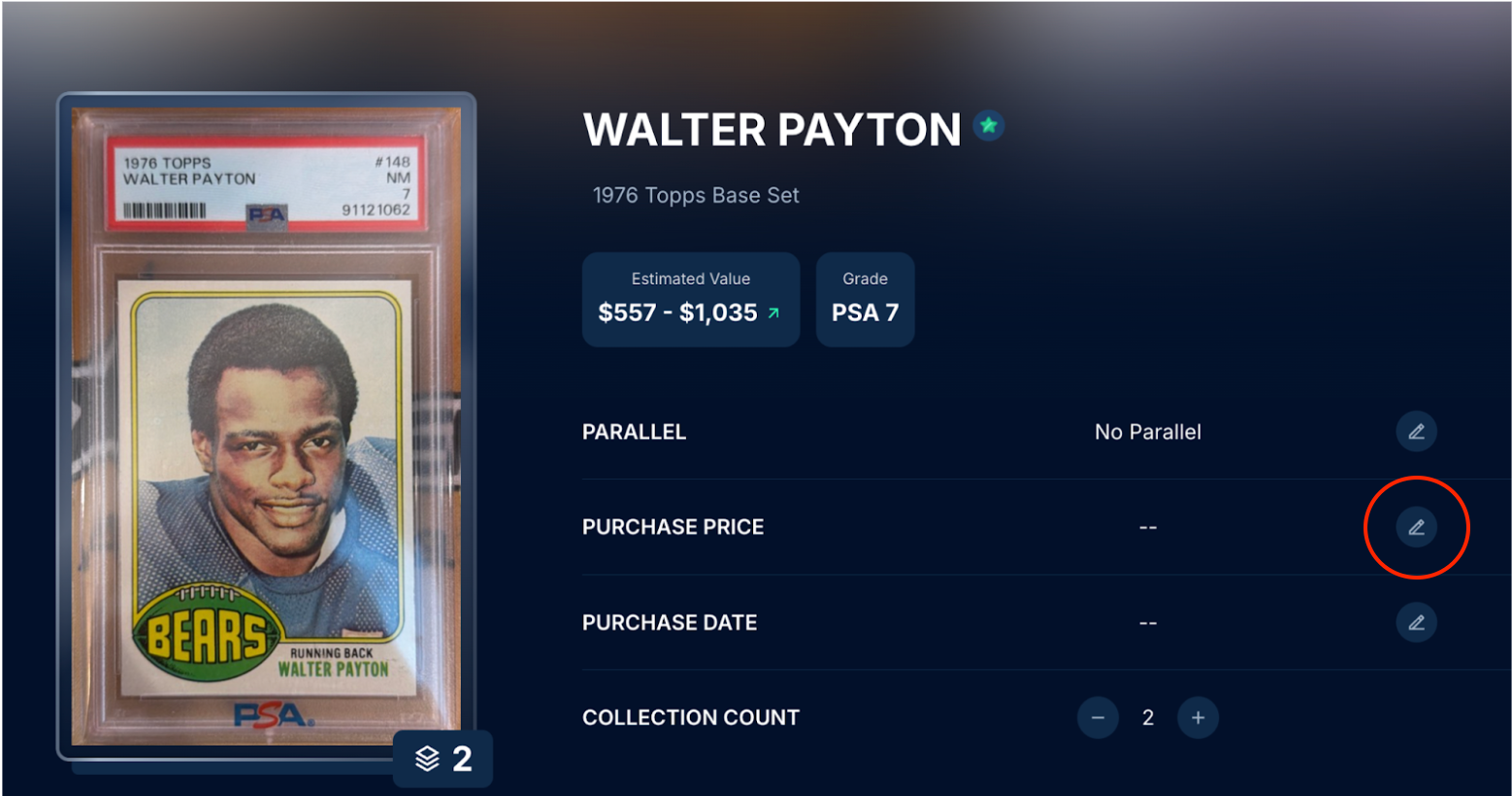
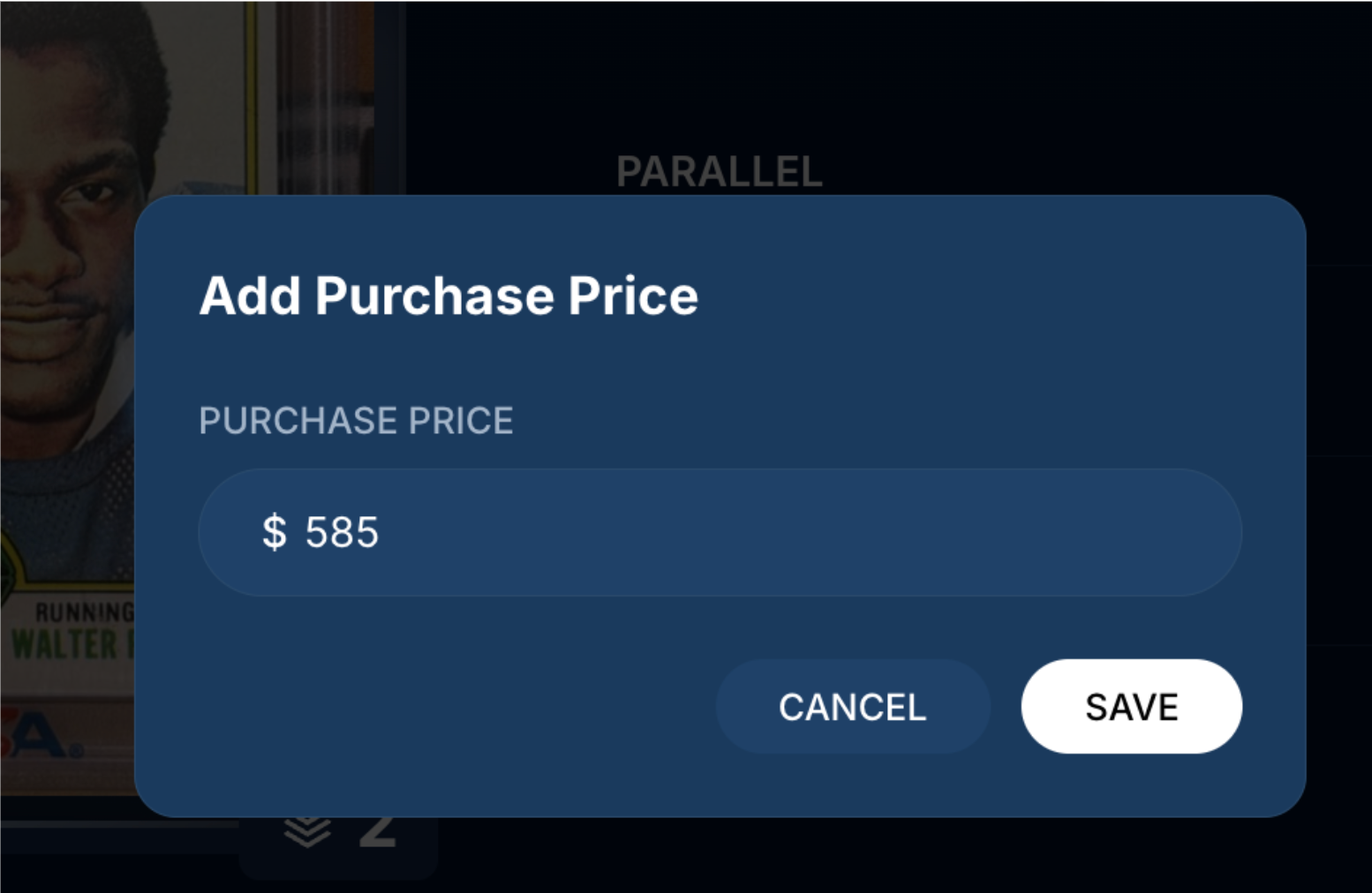
Enter your purchase price in the Add Purchase Price field
Click Save
How to Edit Purchase Date
On the same card detail page, click the pencil icon next to Purchase Date
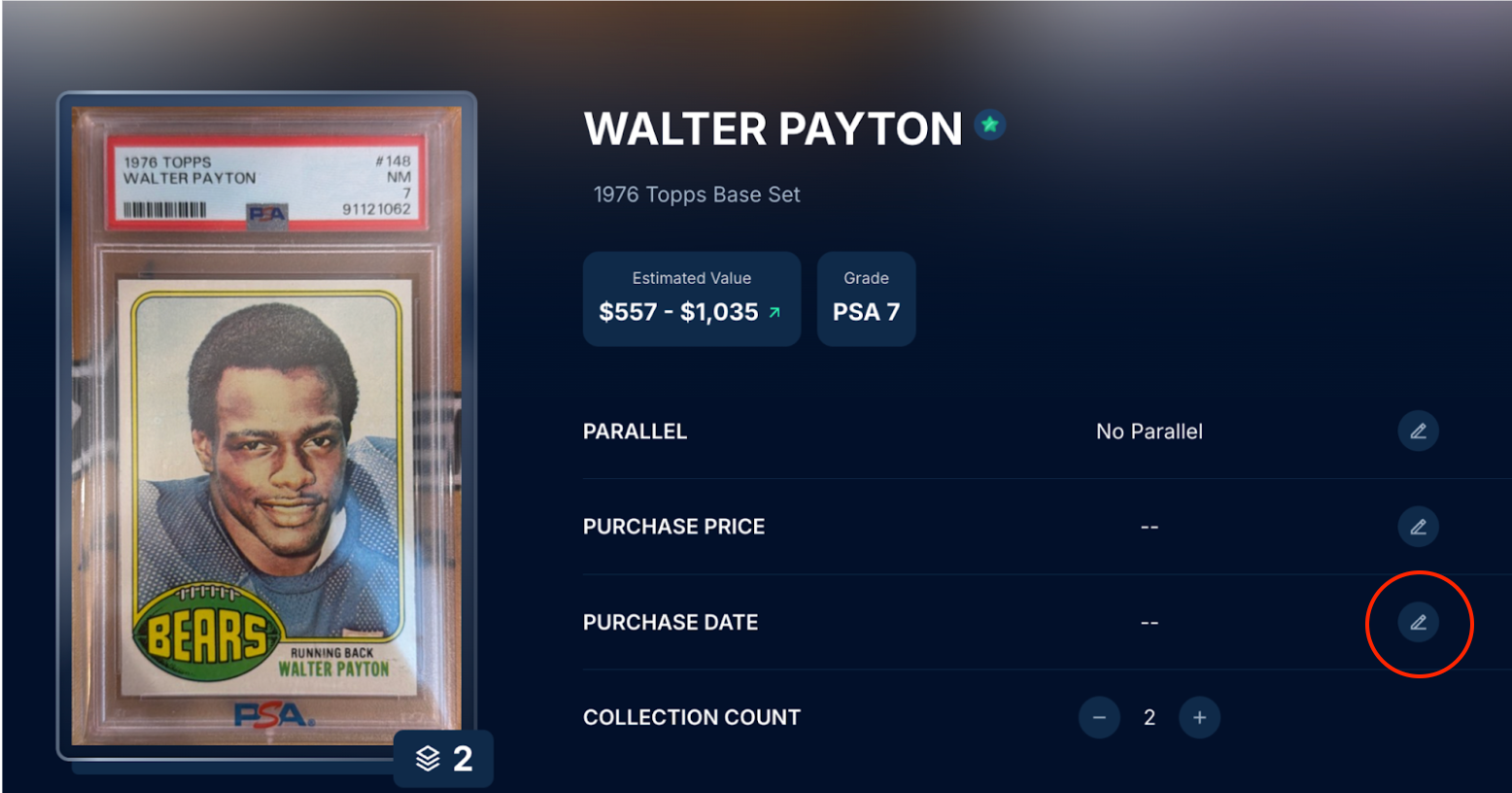
Use the left and right arrows to navigate to the correct year
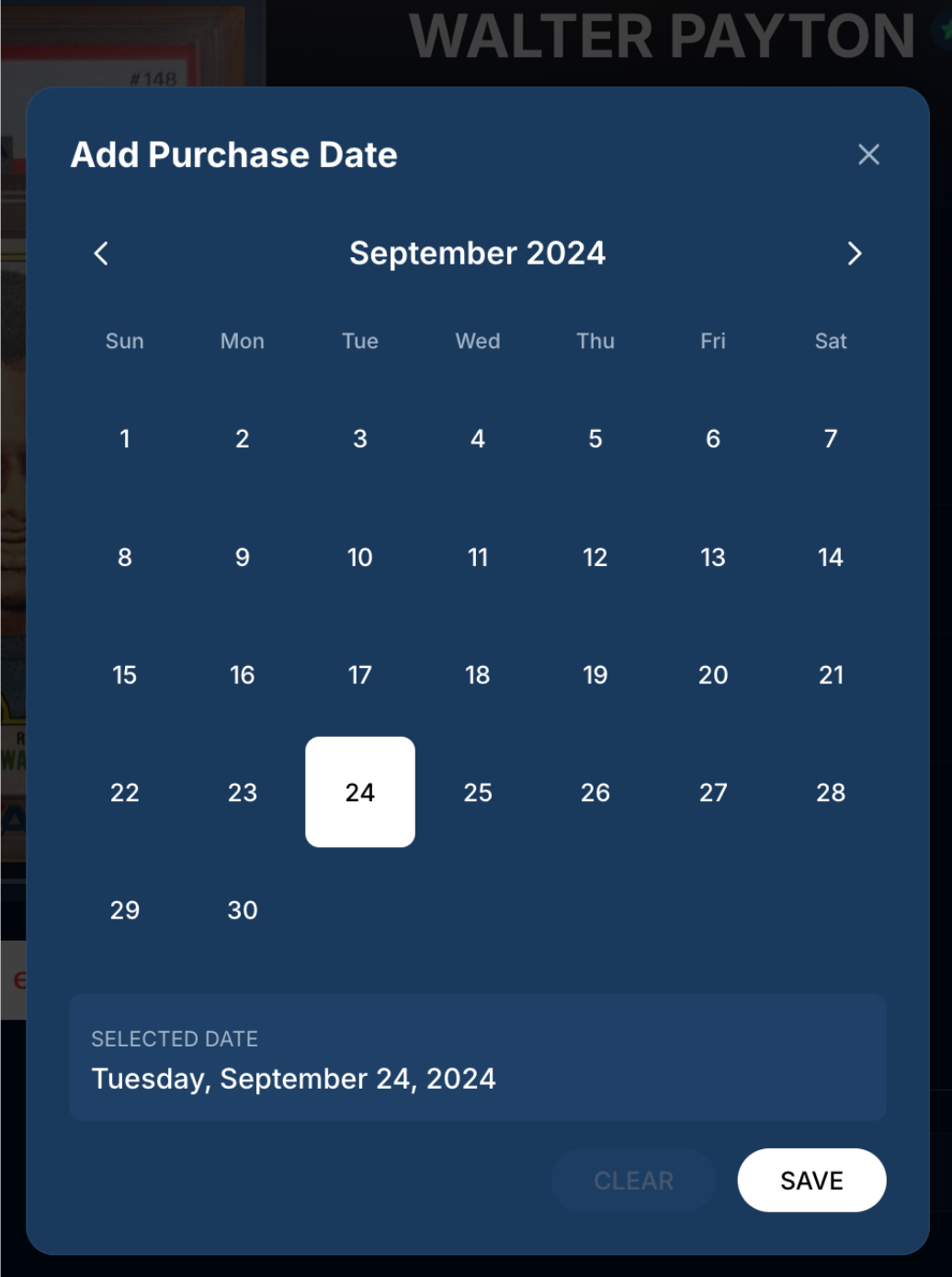
Select the correct month from the calendar
Click Save to confirm
Important Notes
To clear a purchase date you have previously set, tap Clear on the date picker screen before saving.
Purchase price and purchase date are for your personal tracking only and do not affect the Ludex Estimate for your card.
Related Articles
Need Help?
If you have any questions or run into any issues, please contact our support team at support@ludex.com and we will be happy to assist.
Was this helpful?
Still need help? Ask the team