How to Manage your Ludex Collection
Written By Ross Henke
Last updated 5 months ago
Once you have scanned and added cards to your Ludex collection, you can view, sort, filter, and manage them all from within the app. Here is a breakdown of everything you can do.
Accessing Your Collection
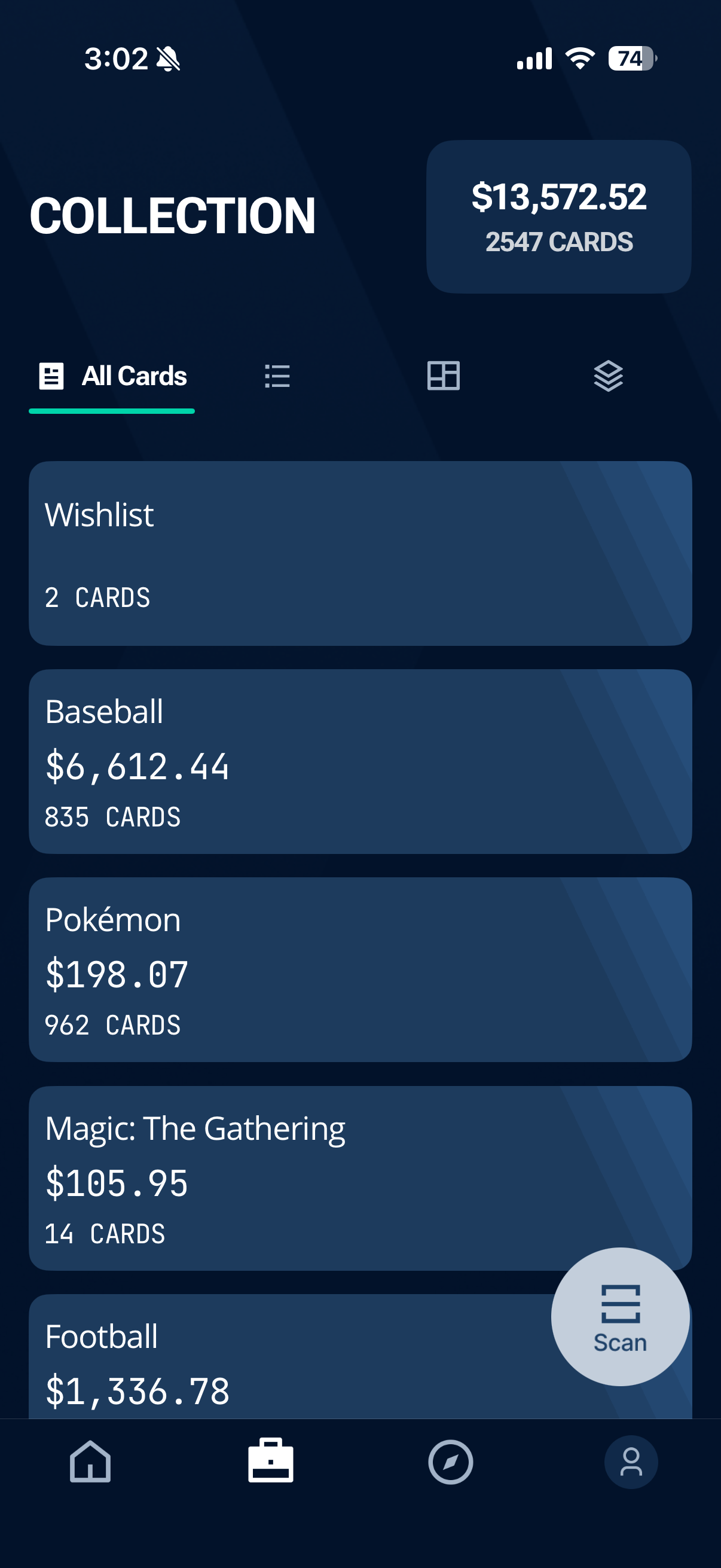
From the home screen, tap the Collection button in the bottom navigation bar - the second icon from the left
You will be taken to your main Collection page, where you can see all of your card types organized by category along with your total collection value
Tap any card type to view the cards within that category
Collection Views
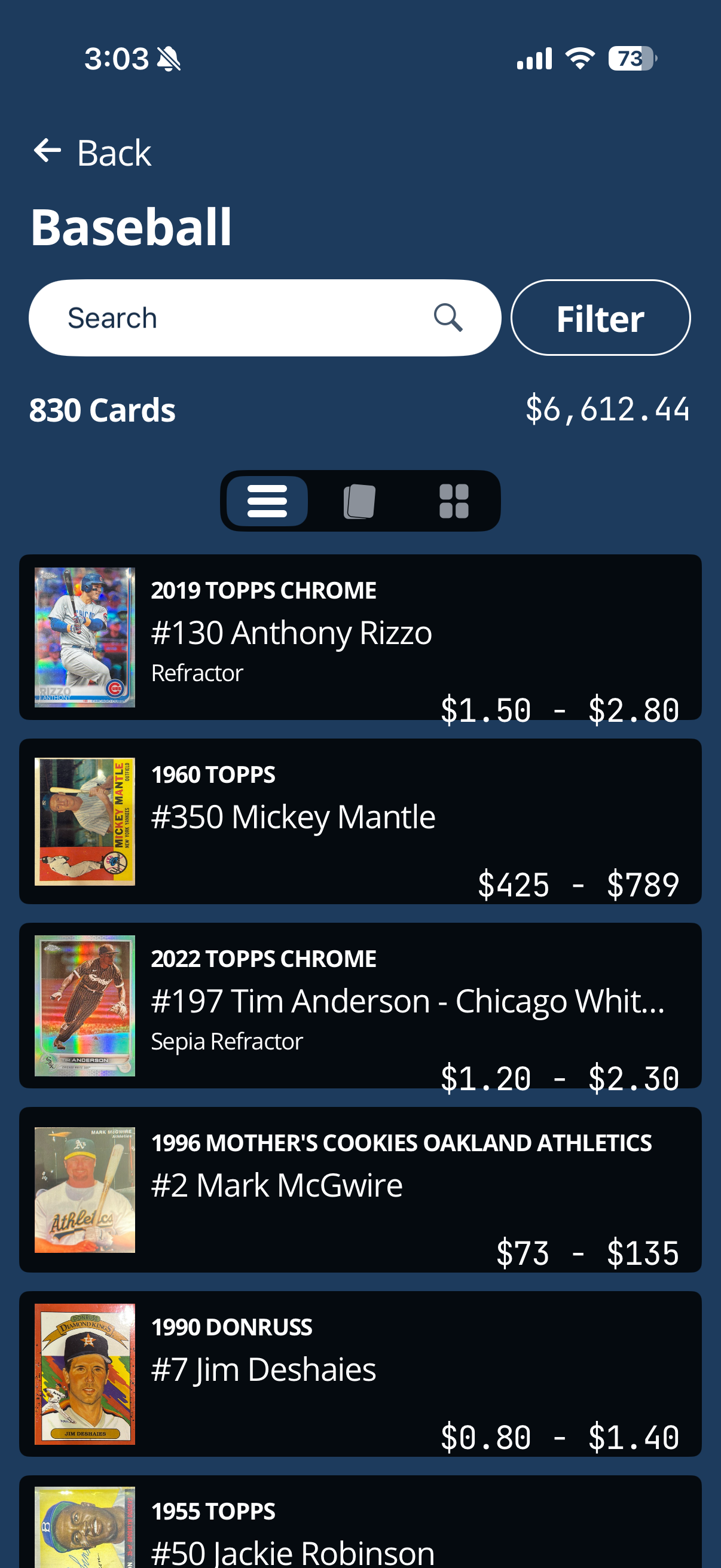
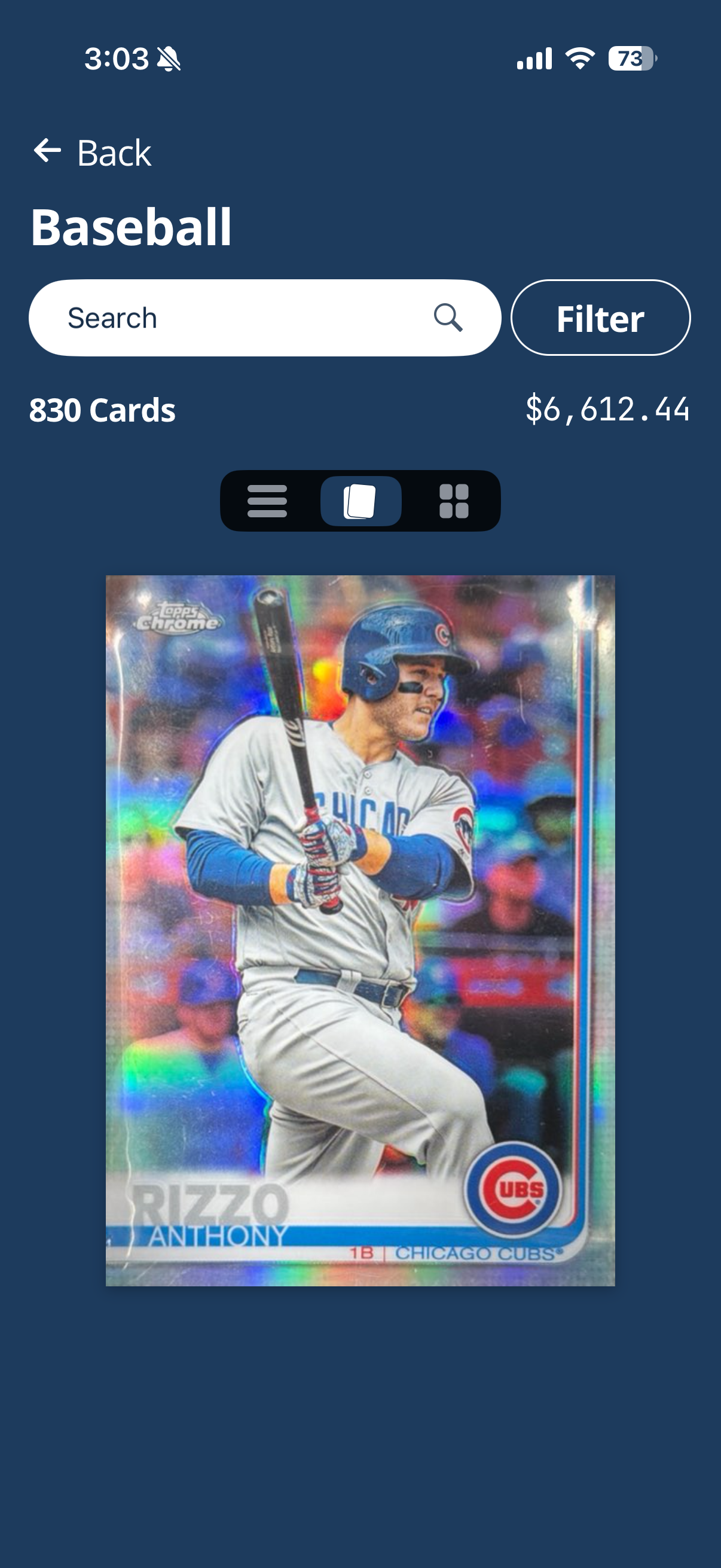
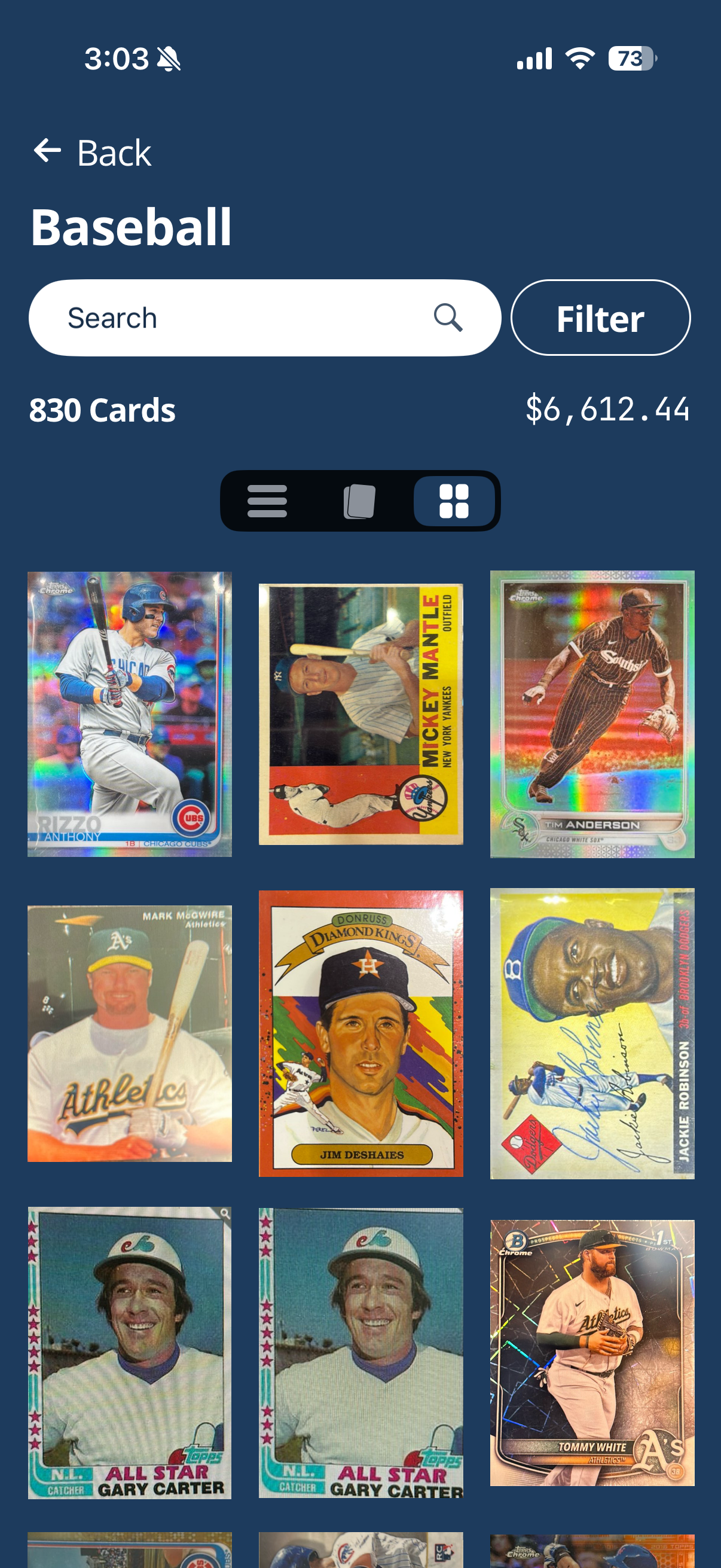
Within each card type, you can switch between three different views using the toggle at the top of the screen:
List View - displays cards in a detailed list showing card name, series, parallel, and Ludex Estimate
Single View - displays one card at a time in a larger format
Grid View - displays cards in a visual grid layout
Search, Sort & Filter
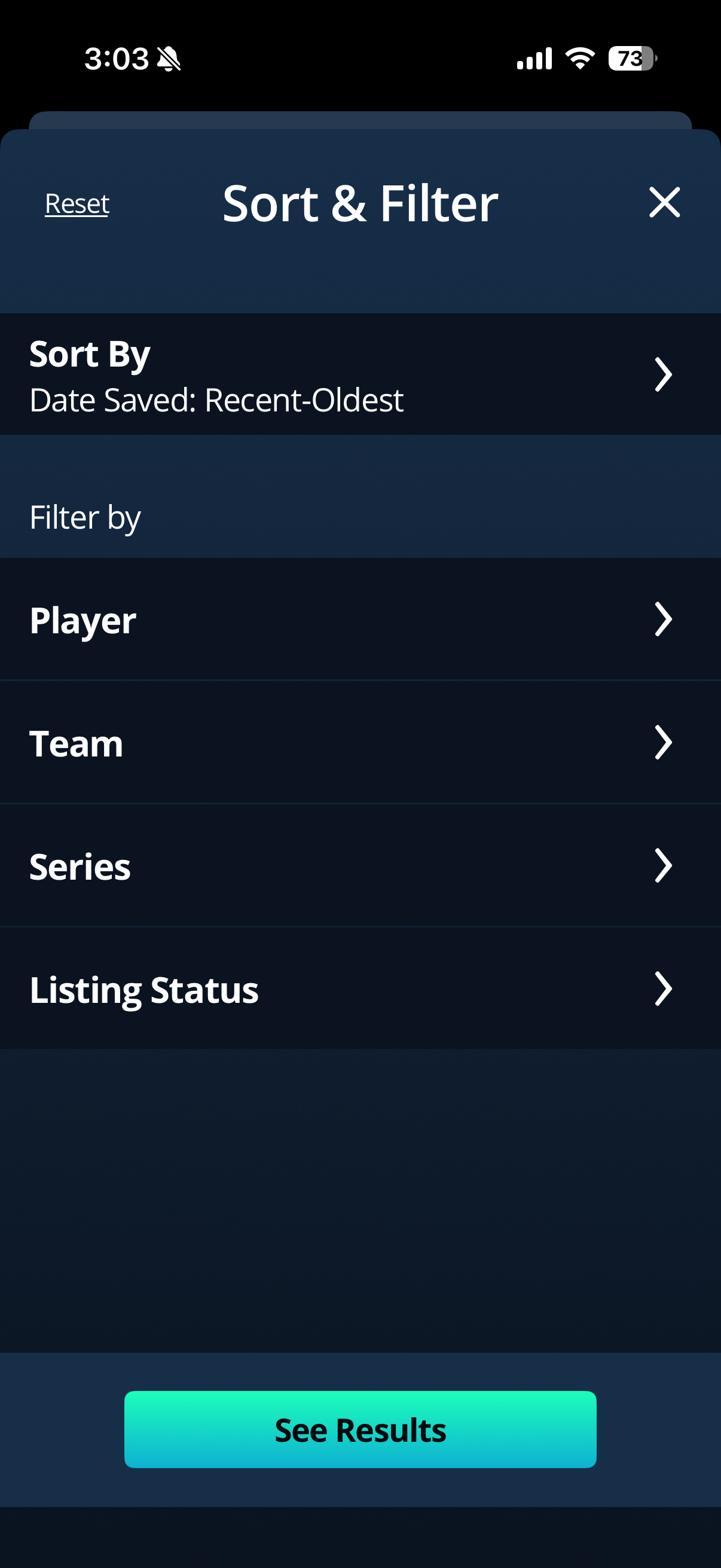
You can quickly locate specific cards using the Search bar or tap Filter to narrow down your results.
Sort by:
Date Saved
Card Name
Card Year
More sort options coming soon.
Filter by:
Player
Team
Series
Listing Status (None, Draft, or Published)
Viewing Card Details & Value
Tap any card in your collection to open its detail page. Here you can view the card's information including its parallel, condition, and Ludex Estimate. You can also access recent Sales data, a Price Report, card Info, and the Shop tab from this screen.
Organize Your Collection with Binders
Ludex allows you to organize your cards into custom binders - a great way to group cards by set, player, theme, or any category that works for you. Learn how to build a binder in Ludex.
Note: The binder link above will be updated once the article is published.
Sell Your Cards on eBay
You can list cards directly from your Ludex collection to eBay without ever leaving the app. Learn how to sell your cards on eBay through Ludex.
Note: The eBay selling link above will be updated once the article is published.
Removing a Card from Your Collection
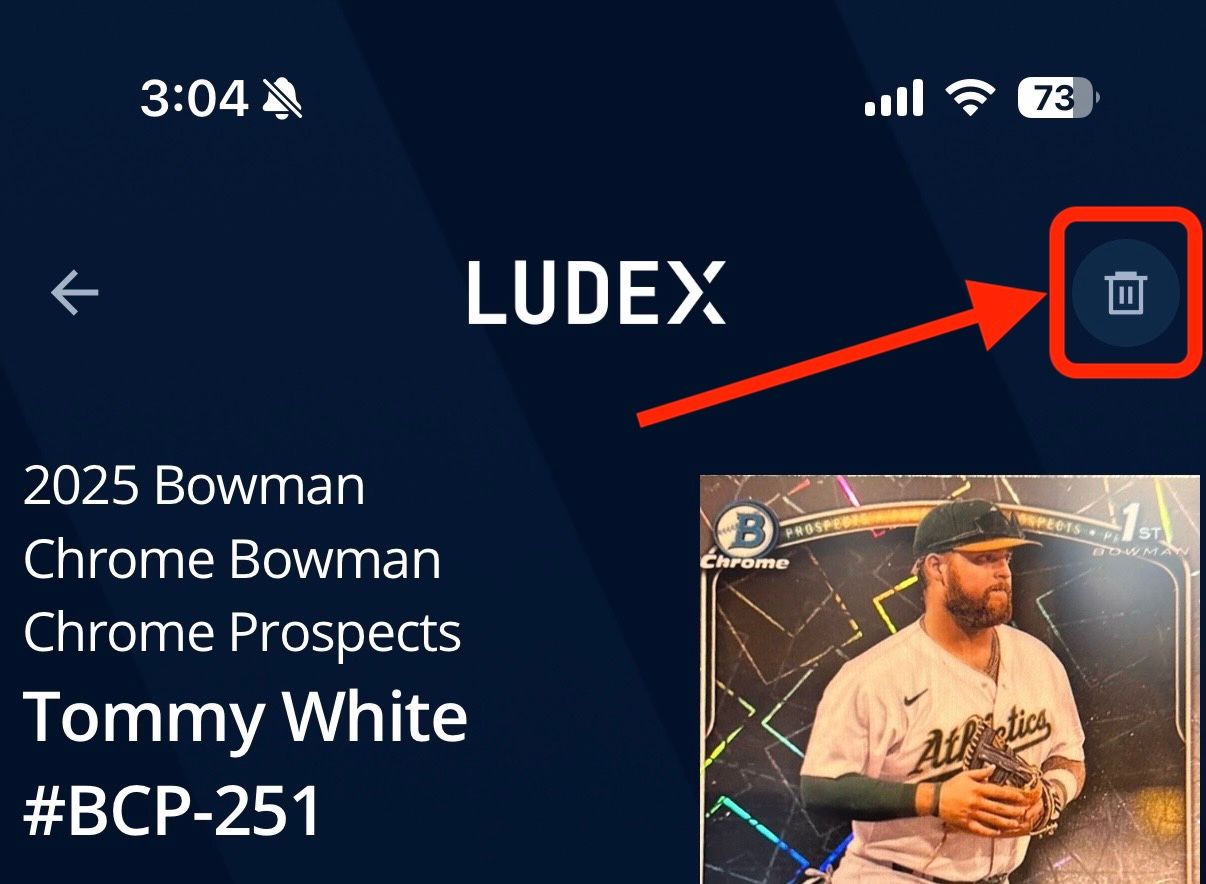
Tap the card you wish to remove to open its detail page
Tap the trash can icon in the top right corner of the screen
When prompted, tap Remove Card to confirm
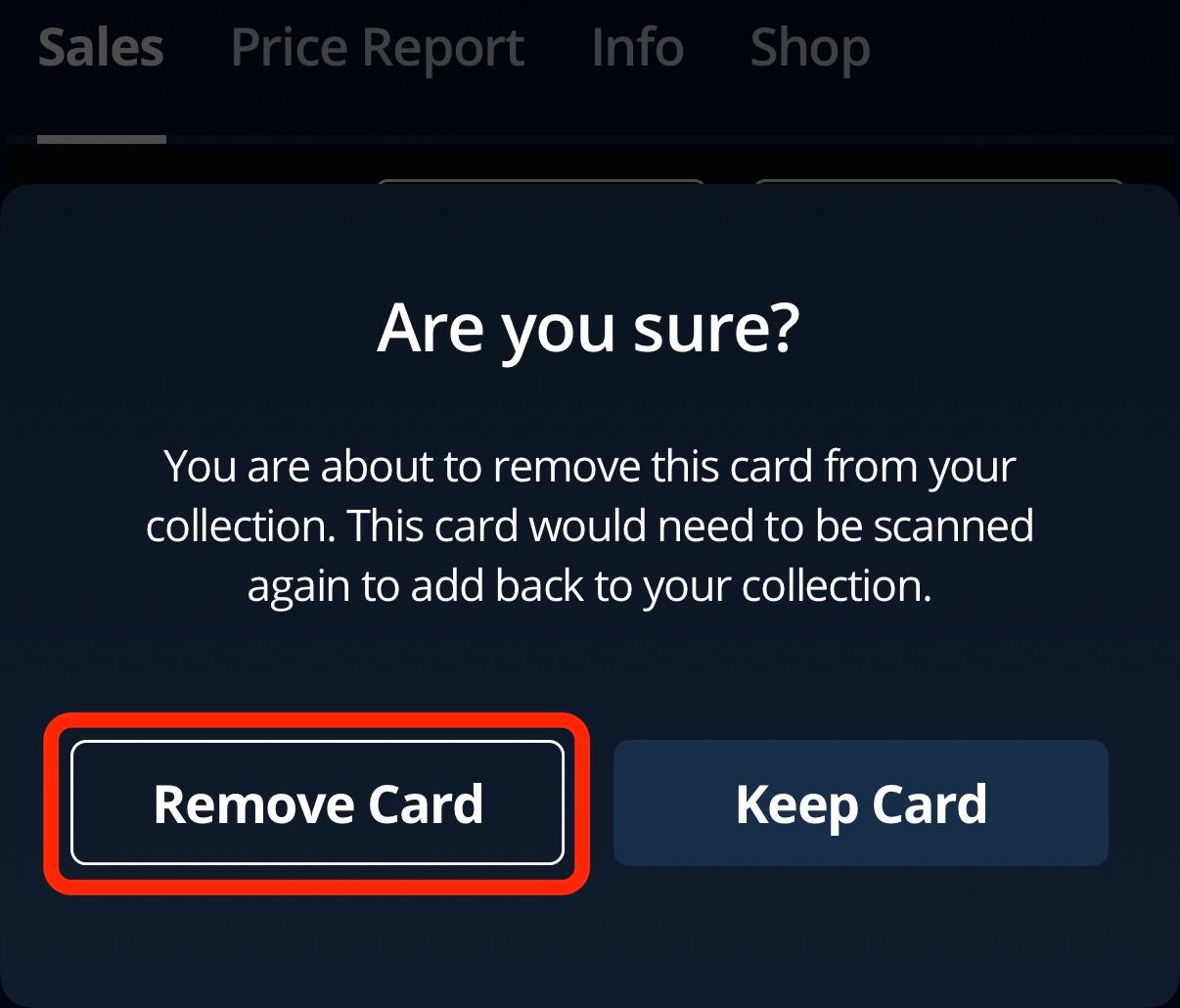
Note: If you remove a card it will need to be scanned again to be added back to your collection. Bulk delete is coming soon.
Need Help?
If you have any questions about managing your collection, please contact our support team at support@ludex.com and we will be happy to assist.
Was this helpful?
Still need help? Ask the team