How To Upgrade, Downgrade, or Cancel Your Ludex Subscription on iOS
Written By Ross Henke
Last updated 5 months ago
If you subscribed to Ludex through the Apple App Store, you can upgrade or downgrade your plan directly within the Ludex app. To cancel your subscription, you will need to do so through your iOS Settings. Follow the steps below.
How To Upgrade or Downgrade Your Plan In the App
Open the Ludex app and tap the Profile icon in the bottom right corner of your screen.
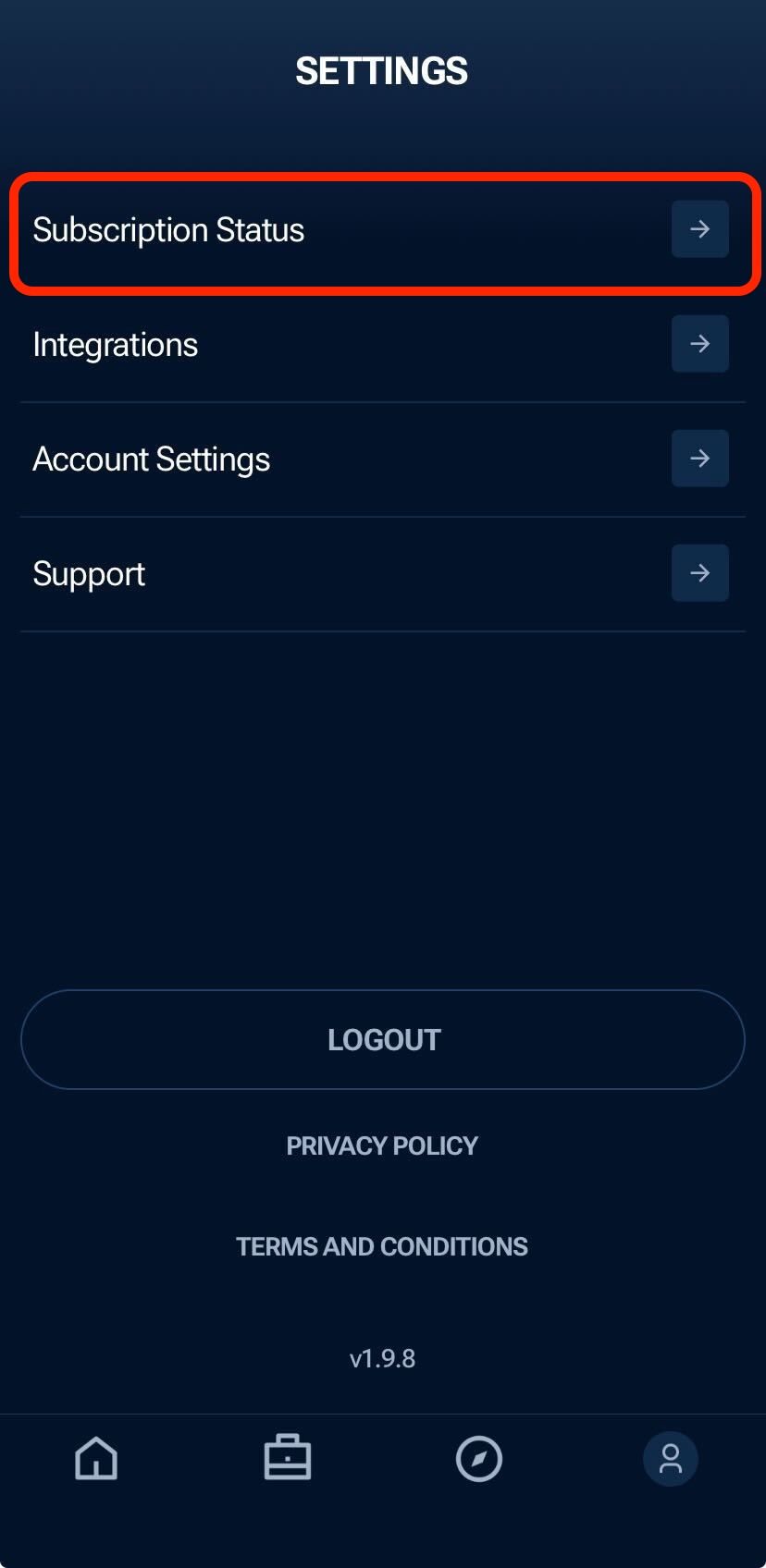
Tap Settings.
Tap Subscription Status.
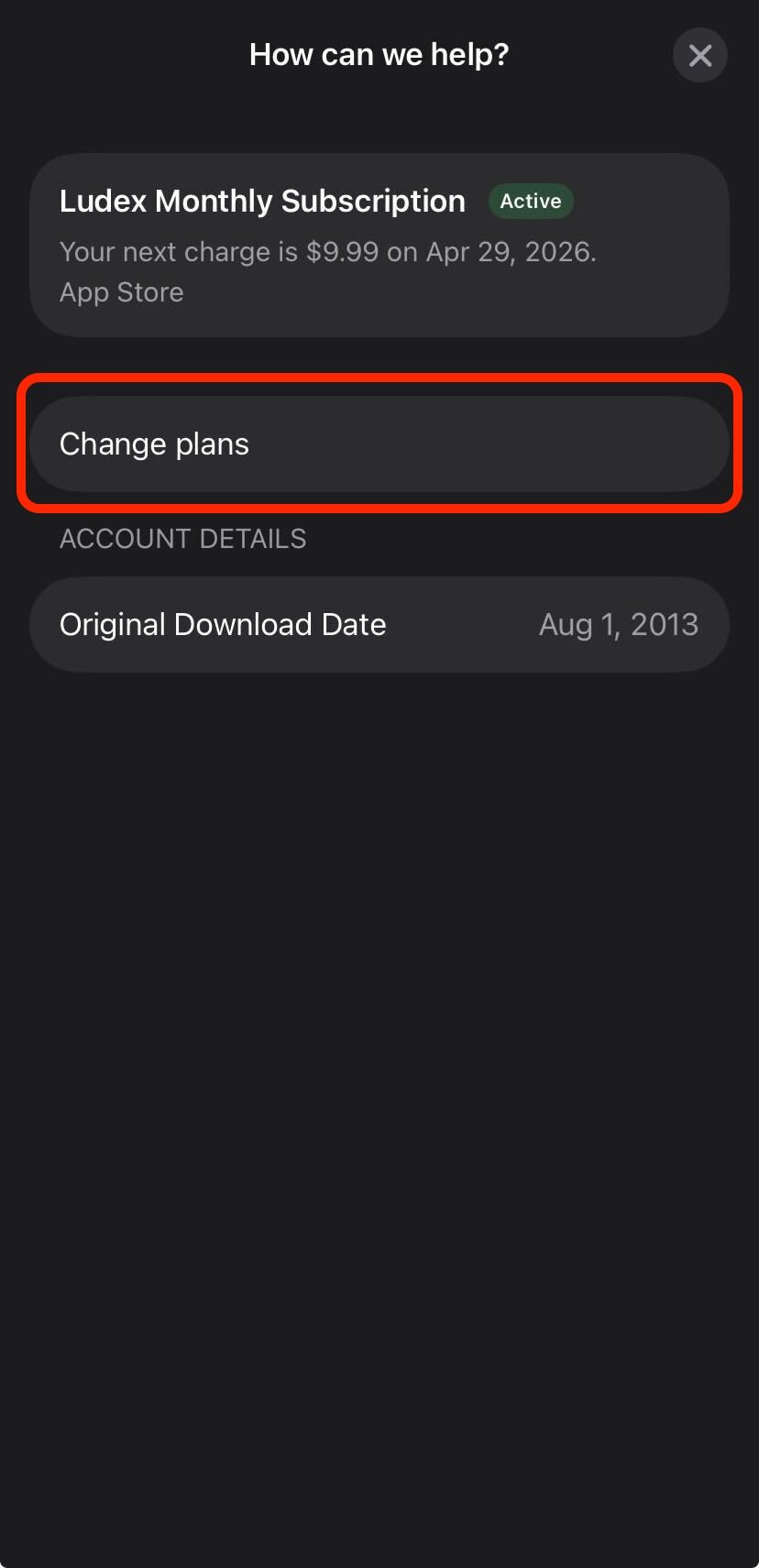
Tap Change Plans.
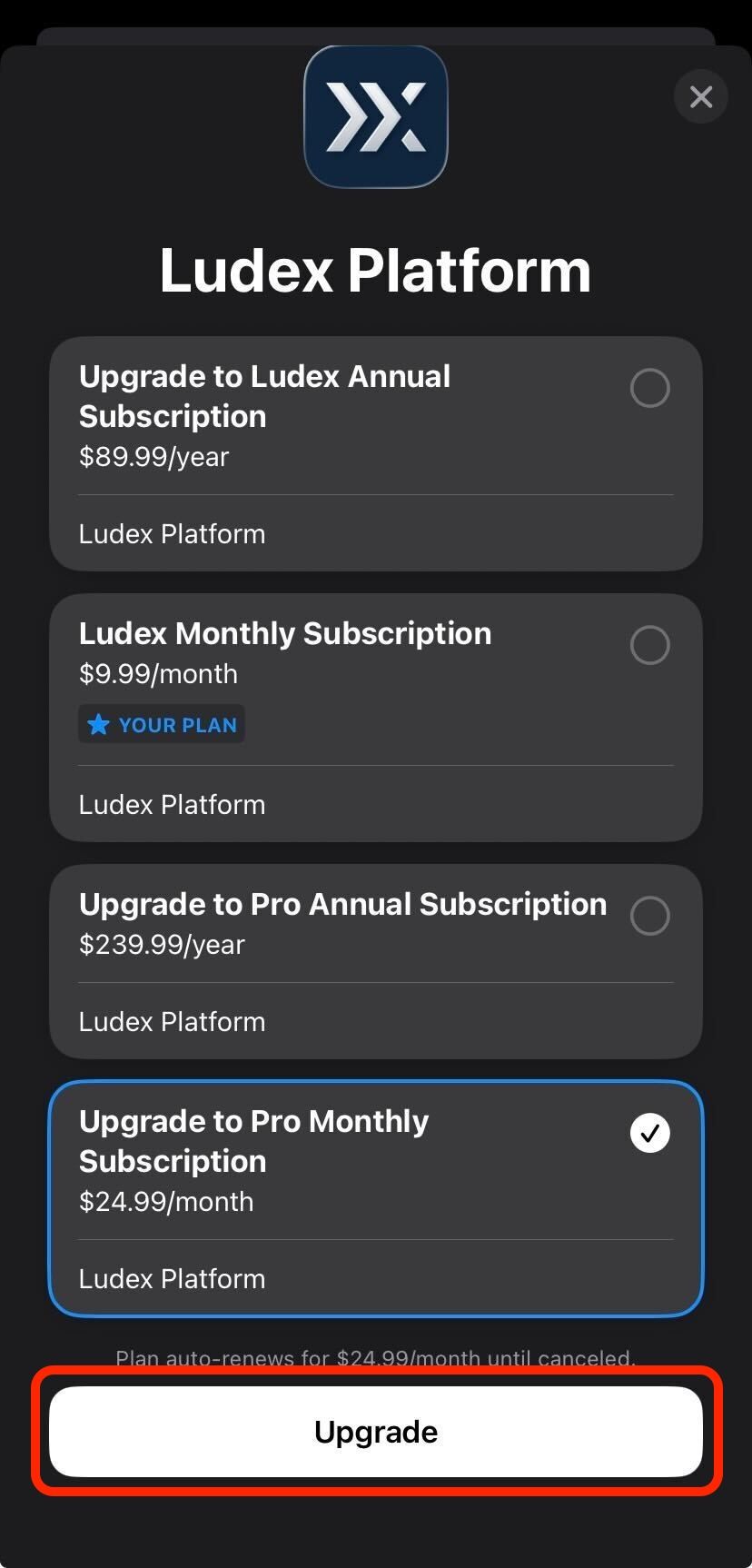
Select the plan you would like to switch to.
Tap Upgrade to confirm your selection.
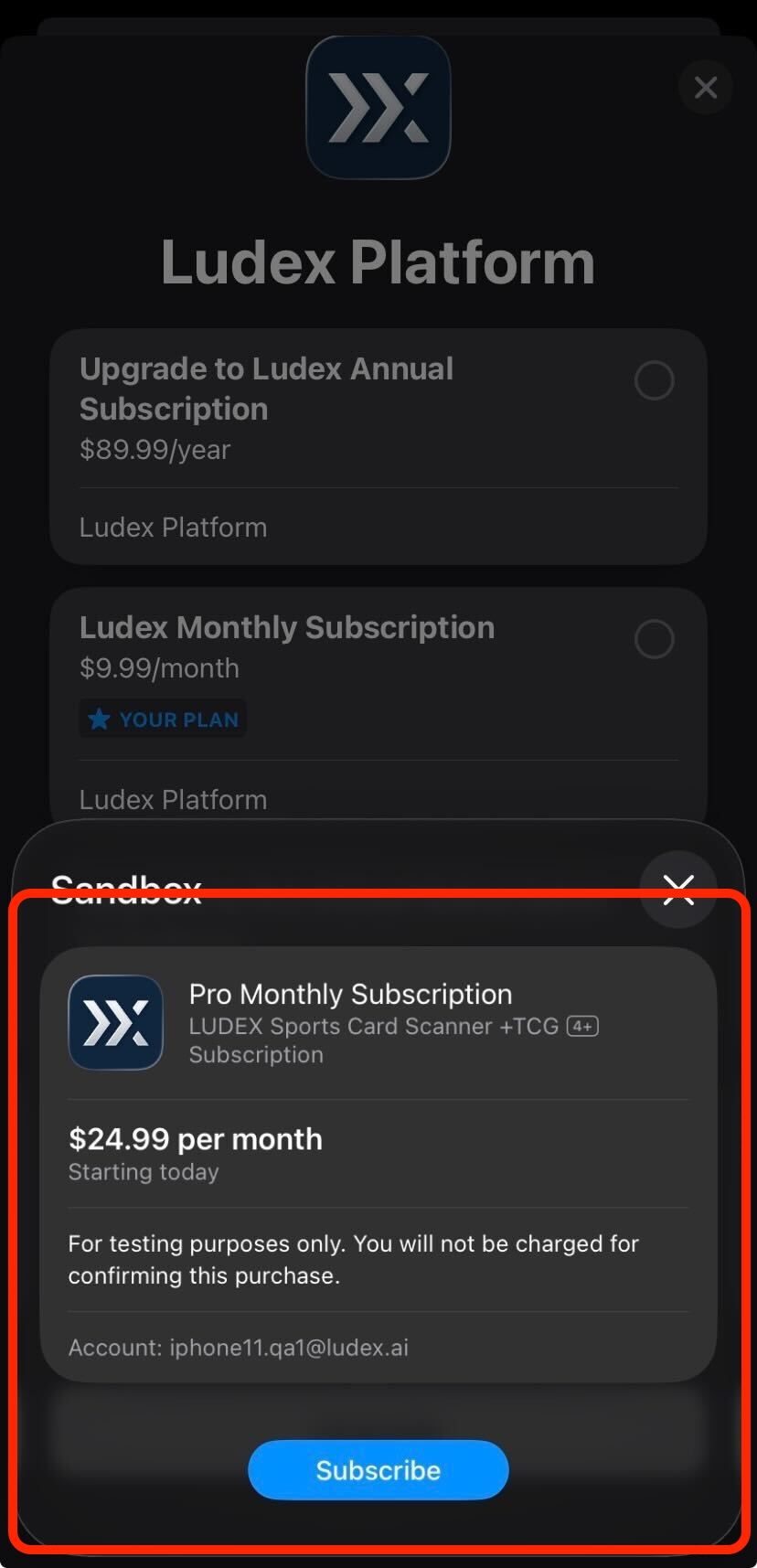
An Apple confirmation sheet will appear summarising your new plan and billing details. This screen is from Apple, not Ludex. Tap Subscribe to confirm the change.
How To Cancel Your Subscription via iOS Settings
Cancellations must be completed through your iOS Settings. Ludex does not have the ability to cancel subscriptions on your behalf.
Open the Settings app on your iPhone.
Tap your name at the top of the screen.
Tap Subscriptions.
Select Ludex from your list of subscriptions.
Tap Cancel Subscription.
Confirm the cancellation when prompted.
Important Notes
Upgrades typically apply immediately. Apple may apply a prorated charge for the remainder of your current billing period.
Downgrades typically take effect at the start of your next billing cycle.
If you cancel, your access will remain active until the end of your current billing period.
If your Ludex subscription does not appear in iOS Settings, make sure you are signed in with the correct Apple ID used to purchase the subscription.
Billing and subscription management are handled by Apple. Ludex does not have access to your payment information.
Related Articles
Need Help?
If you have any questions or run into any issues, please contact our support team at support@ludex.com and we will be happy to assist.
Was this helpful?
Still need help? Ask the team