How to Build a Deck with Ludex
Written By Ross Henke
Last updated 5 months ago
Ludex allows you to build and manage custom TCG decks directly from your collection. Whether you are building a competitive Magic: The Gathering deck or organizing your Pokémon cards, the Ludex Deck Builder makes it easy to track your deck's value and composition all in one place.
Who Can Use the Deck Builder?
The Deck Builder is available for TCG card types only - currently Magic: The Gathering and Pokémon. Sports card categories are not supported for decks at this time.
How to Create a New Deck
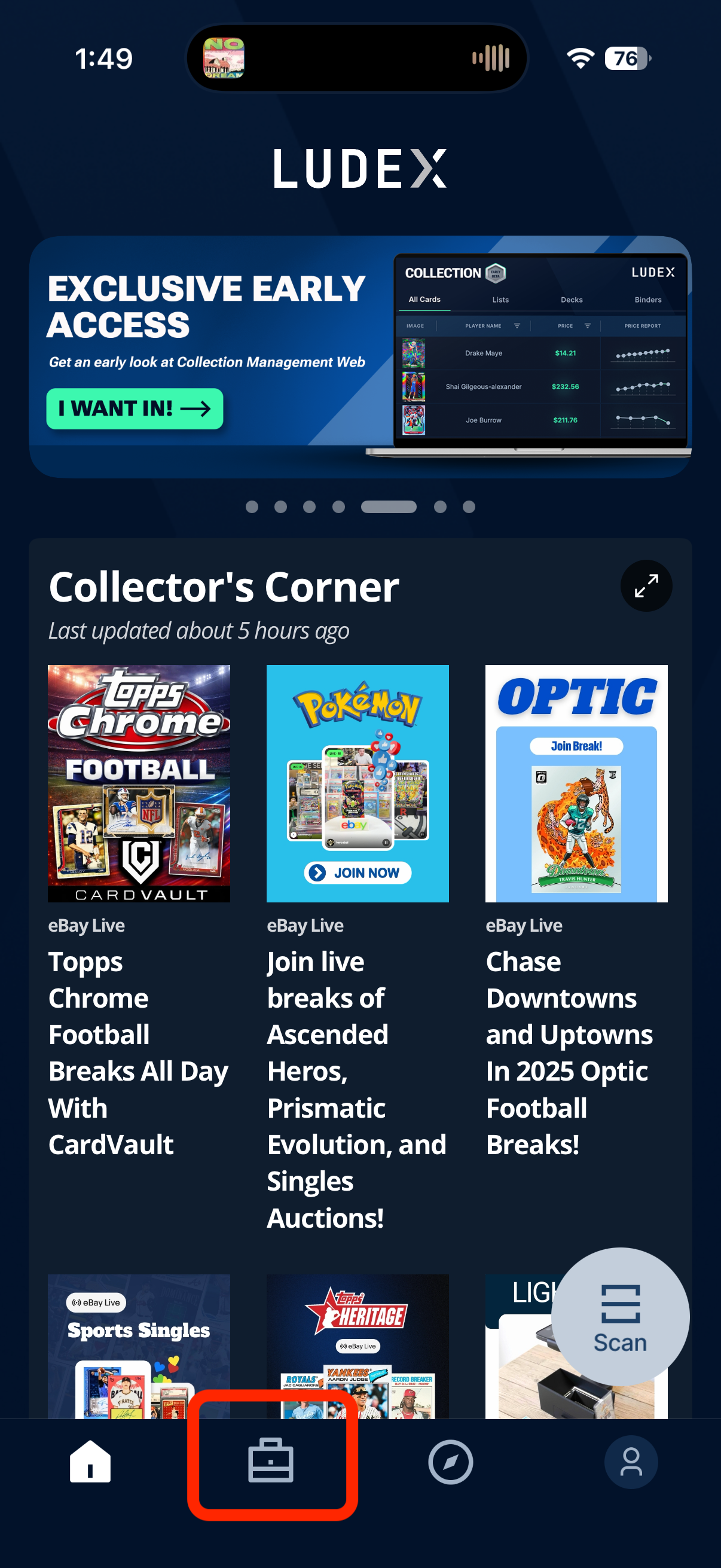
Open the Ludex app and tap the Collection button in the bottom navigation bar - the second icon from the left
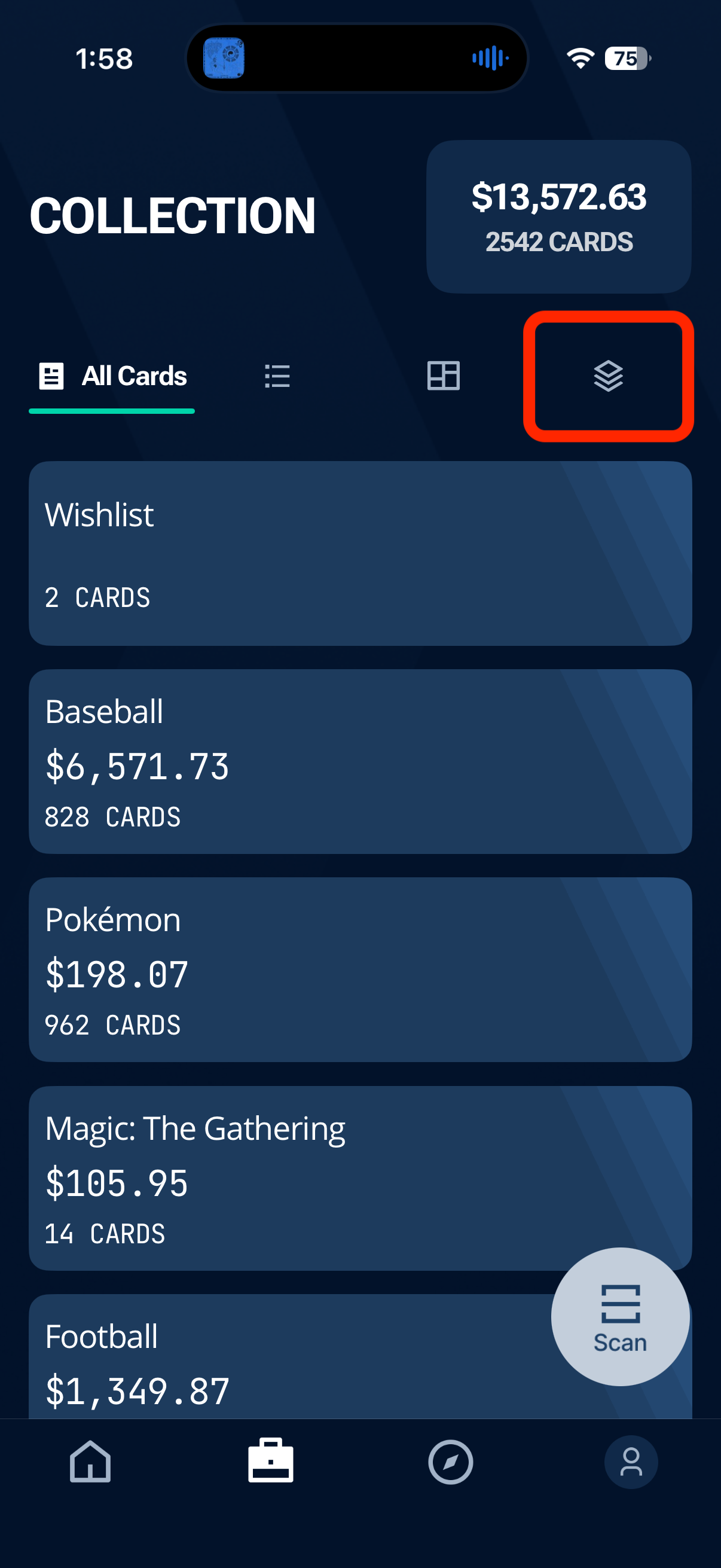
On the Collection page, tap the Decks tab - the stacked layers icon at the top right of the screen
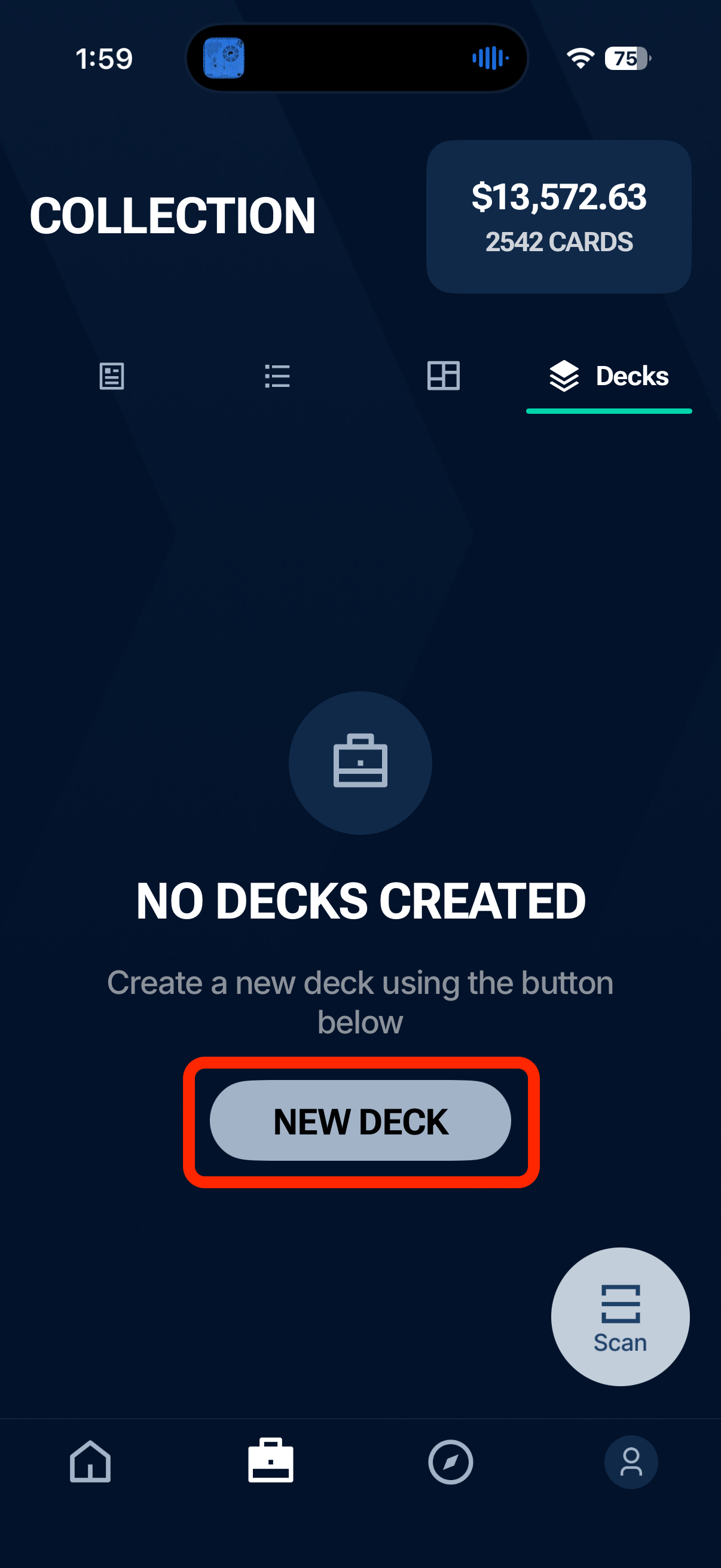
Tap New Deck
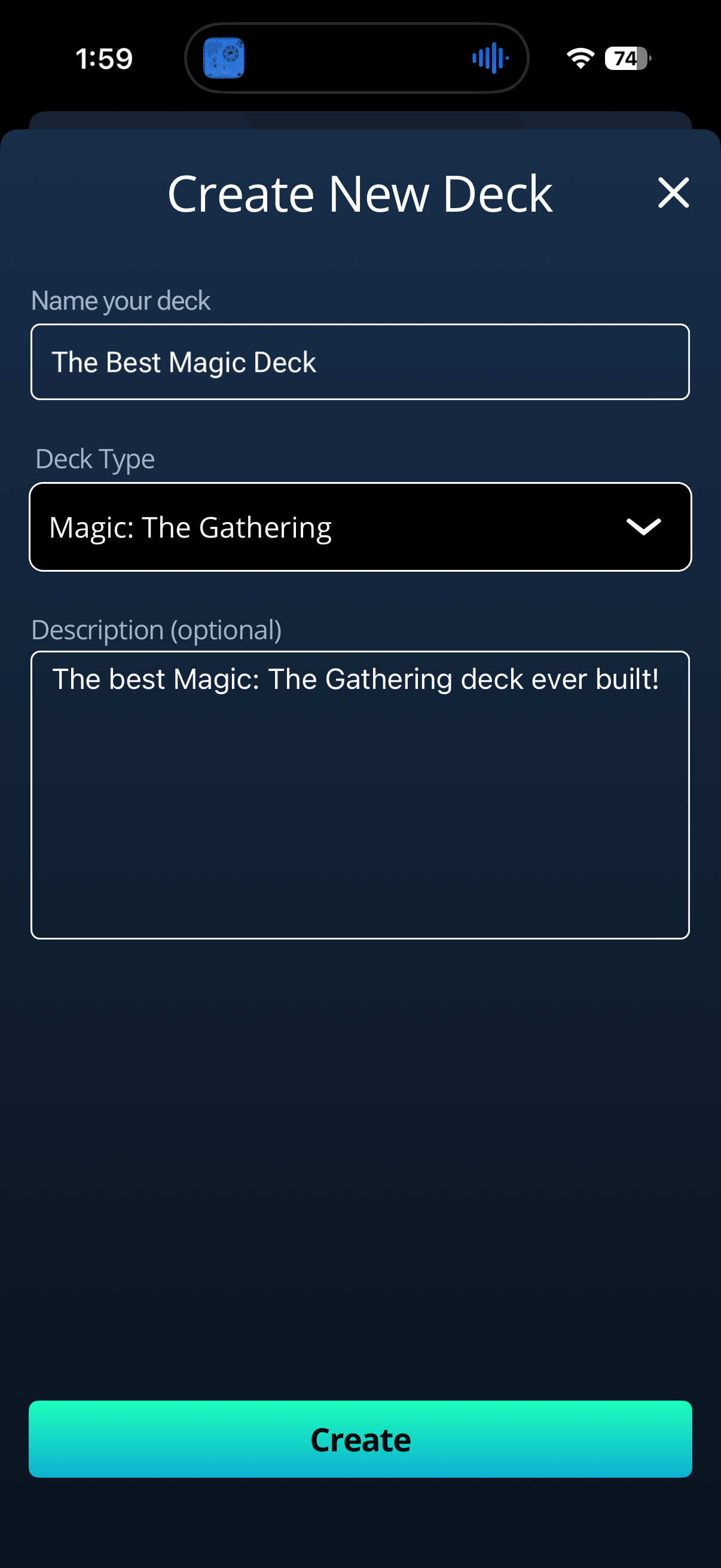
On the Create New Deckscreen, fill in the following:
Name your deck - give your deck a name
Deck Type - select the TCG category for your deck (Magic: The Gathering or Pokémon)
Description (optional) - add any notes or details about your deck
Tap Create to build your deck
How to Add Cards to Your Deck
Once your deck has been created, tap Add Cards
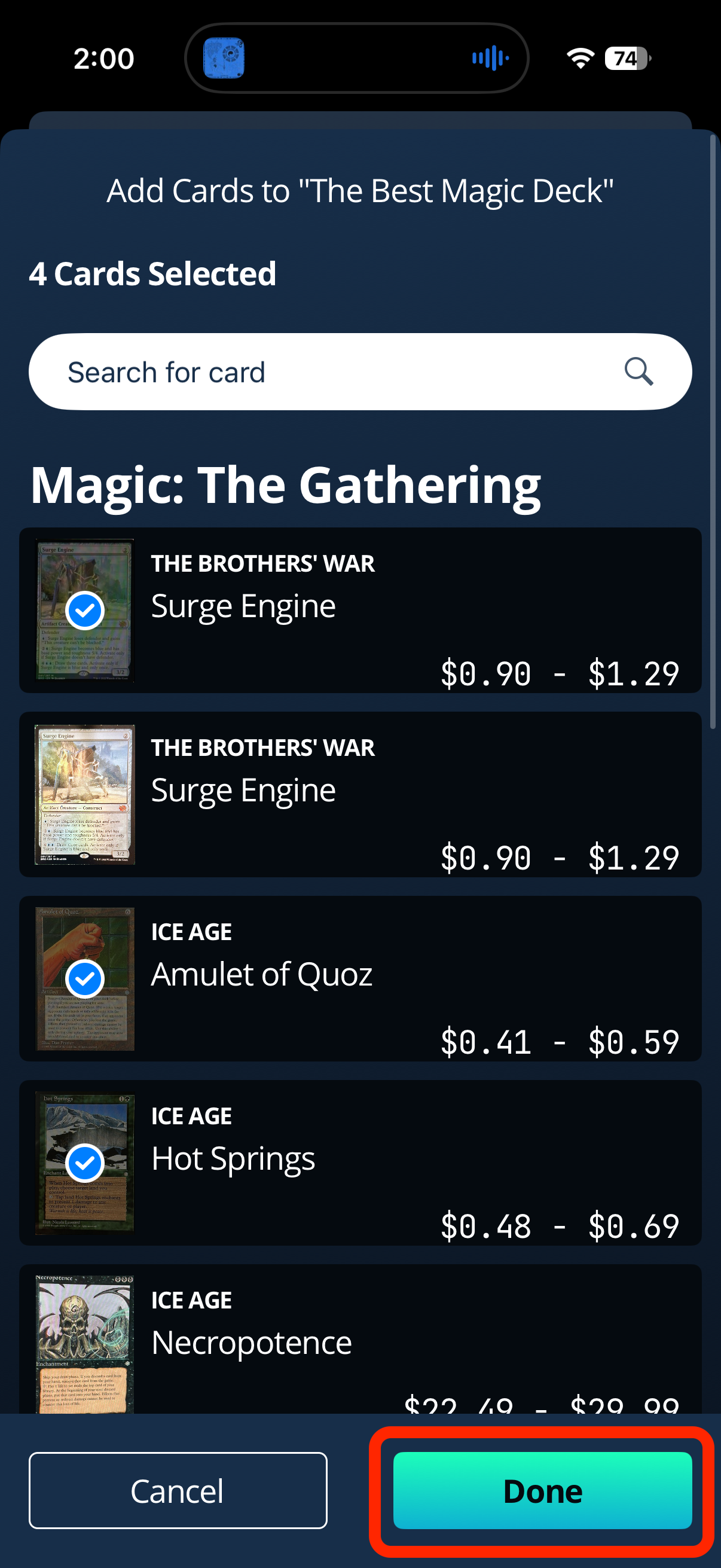
Browse or search your collection for the cards you want to include - tap each card to select it
Once you have selected all the cards for your deck, tap Done
Viewing and Sorting Your Deck
Once your deck is built you can sort your cards in two ways using the dropdown at the top of the deck screen:
Type - sorts cards by card type (e.g. Artifact, Creature, Enchantment)
Color - sorts cards by color (e.g. White, Blue, Black, Red, Green, Colorless)
Your deck's total estimated value is displayed at the top of the screen and updates automatically as cards are added.
Need Help?
If you have any questions about building or managing your decks, please contact our support team at support@ludex.com and we will be happy to assist.
Related Articles
Was this helpful?
Still need help? Ask the team